Genova
Manage Endorsements
Creating a New Endorsement in the Genova System
This guide provides a step-by-step process for creating a new endorsement within the Genova system. Each step includes a screenshot to aid in navigation. Follow these instructions carefully to ensure accurate data entry.
Start url: http://localhost/vanguard-genova/cia/admin/endorsement-list
Tab Name: List Base Endorsements - GENOVA INSURANCE
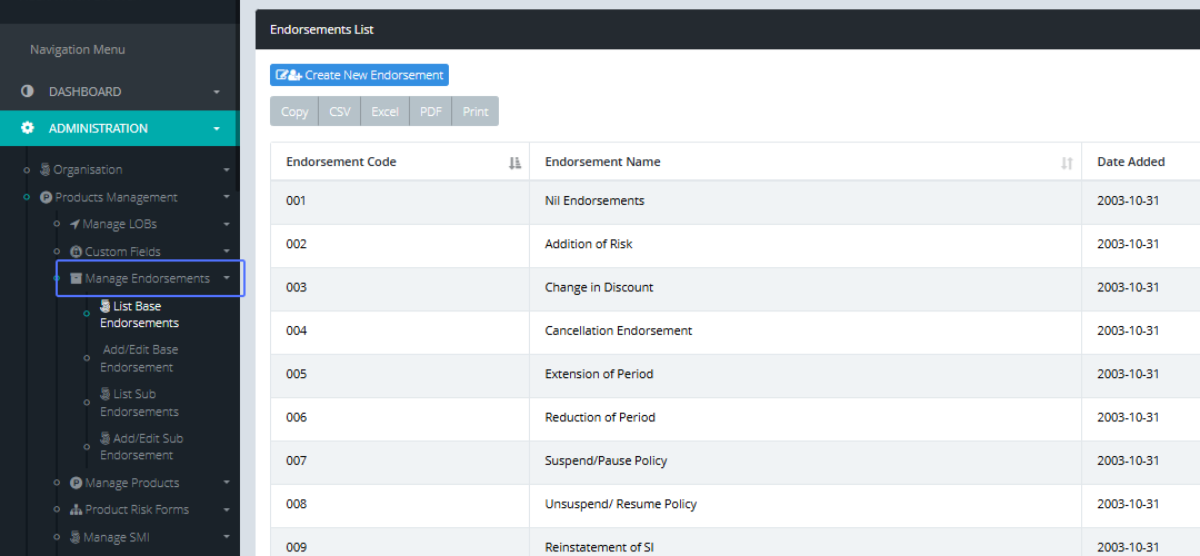
Accessing the Endorsement Management Page: Click on the “Administration” button on the side bar, then Click Manage Endorsements. Click the “List Base Endorsements” to show the existing Endorsements within the system.
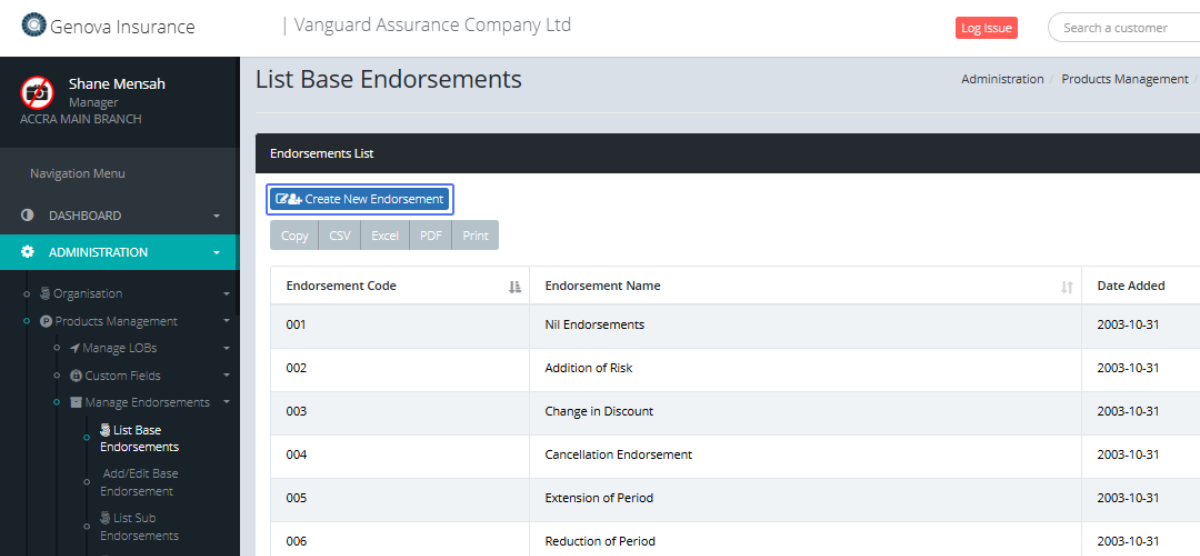
Initiating New Endorsement Creation: Click the New Endorsement button to create a new Endorsement
Tab Name: Add/Edit Base Endorsement - GENOVA INSURANCE
Entering the Endorsement Code and Name: Enter the name of the Endorsement you want to create.
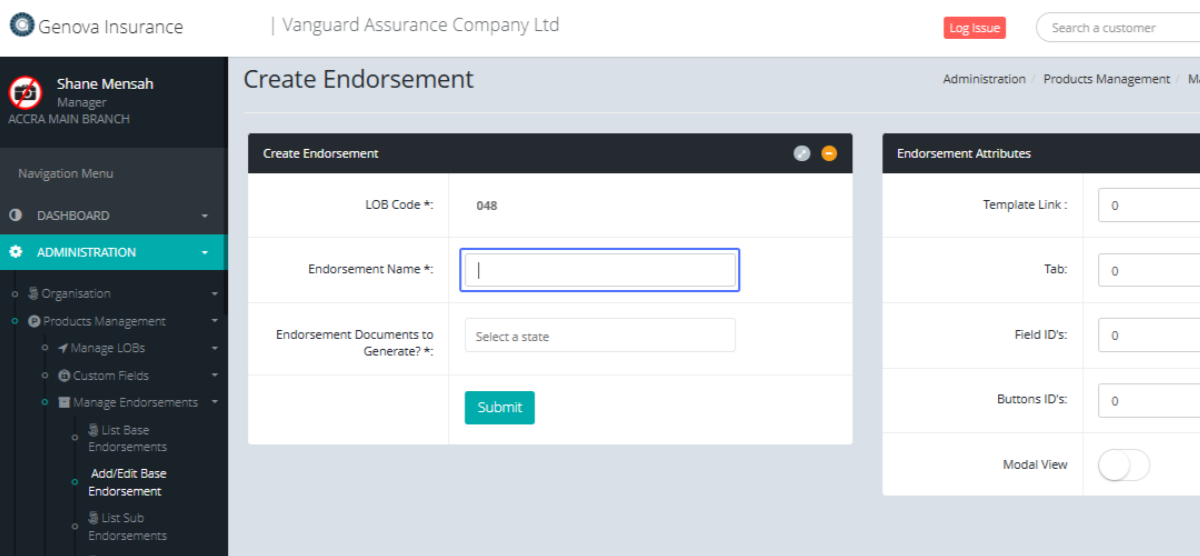
Selecting the Endorsement State: Users can select the Endorsement state from the dropdown. Multiple Endorsements States can be selected here.
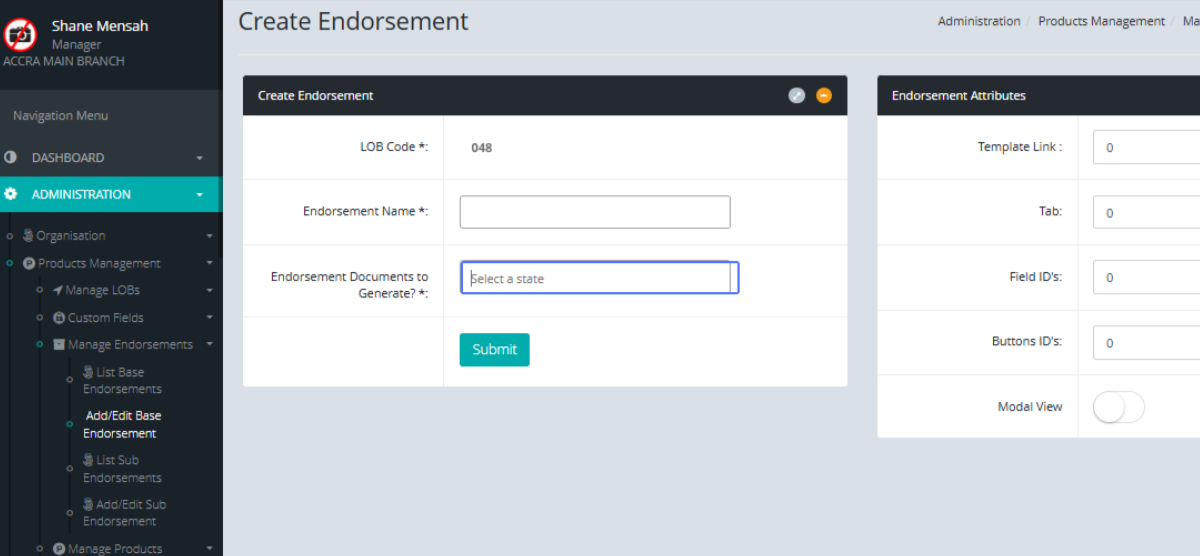
Specifying the Template Link: Enter the Template Link (Developer Purposes Only)
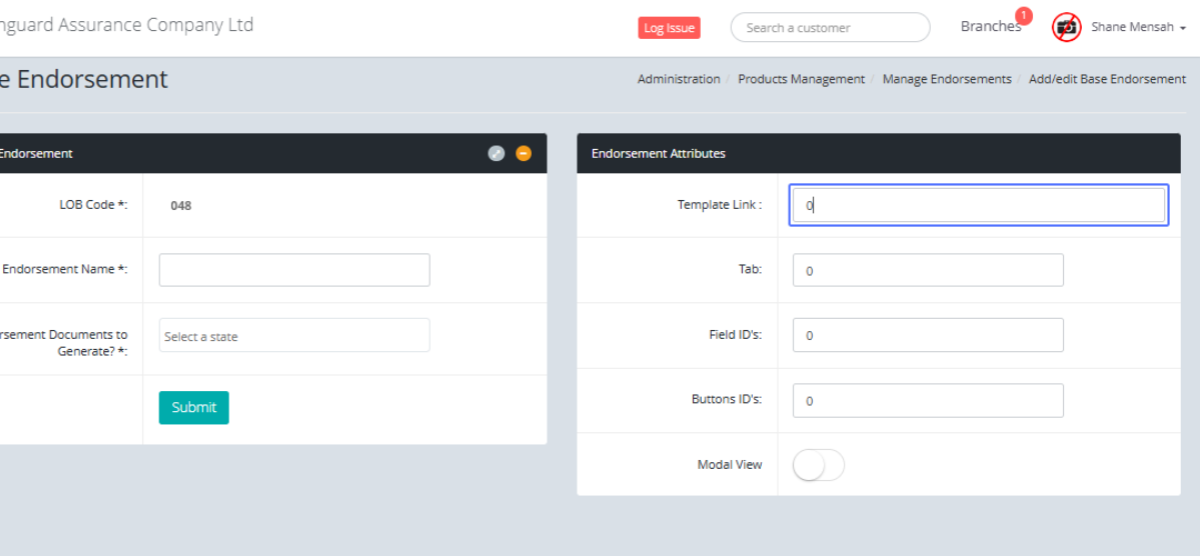
Defining the Tab Index
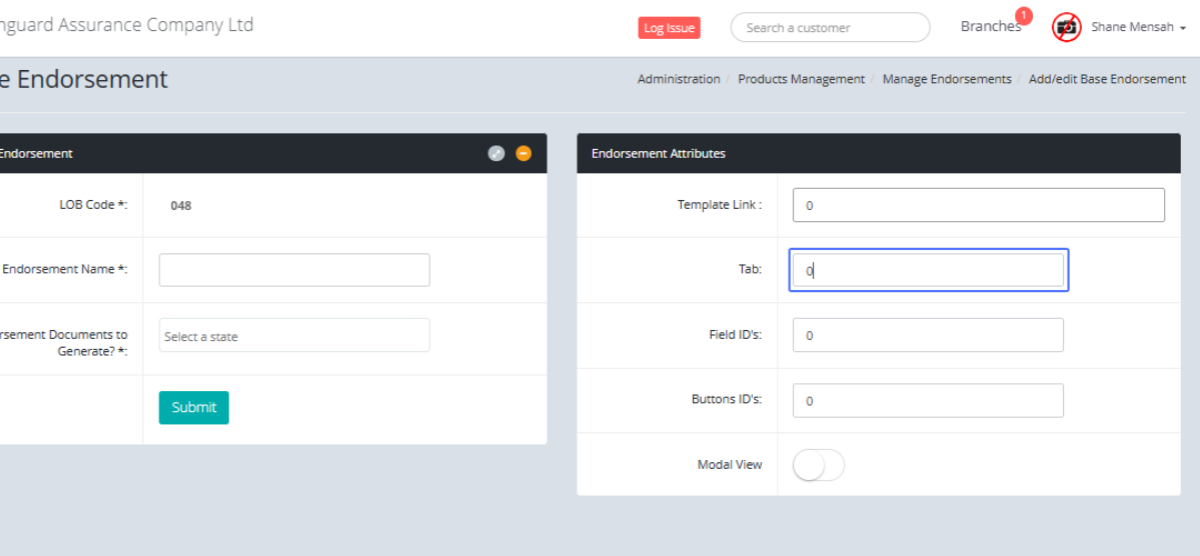
Identifying Affected Fields
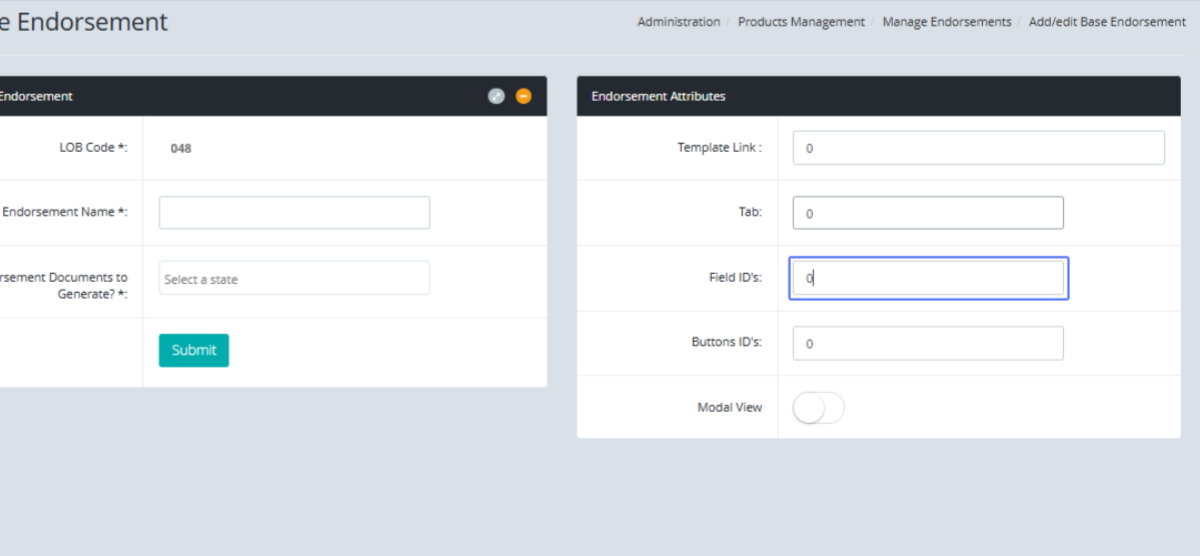
Specifying Affected Buttons
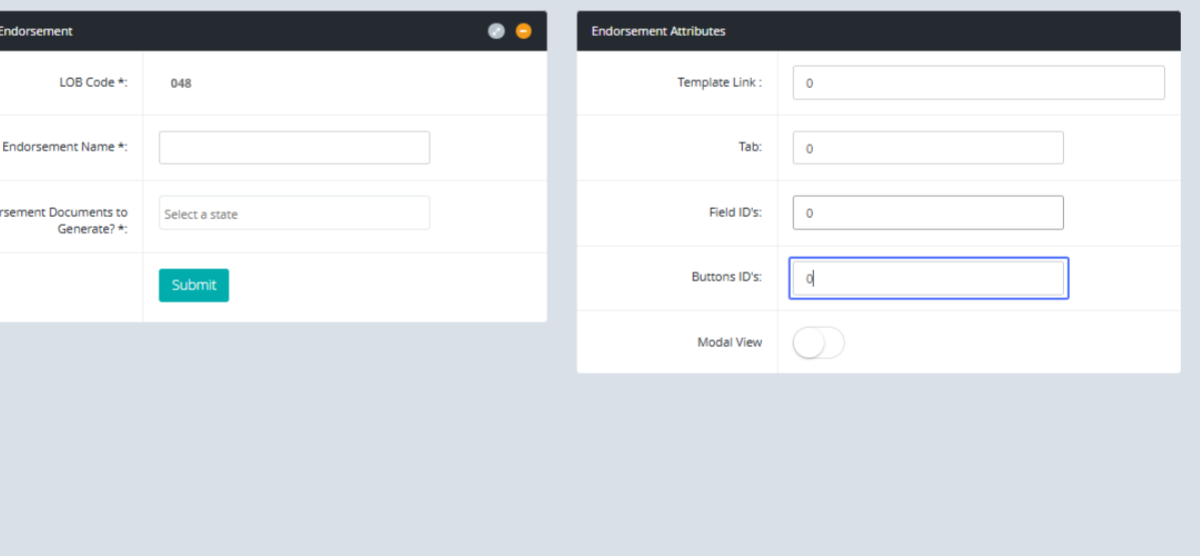
Setting Modal View: Toggle this If you want the endorsement to be made on a modal rather than changing it in the risk.
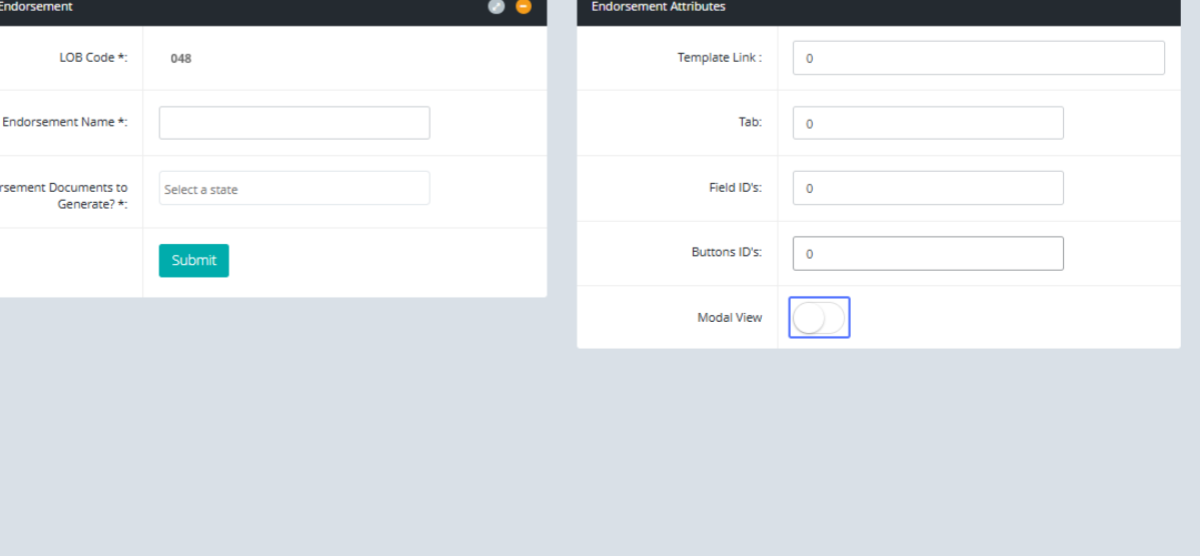
Submitting the New Endorsement: After that is done, click on the submit button to create the endorsement.

Creating and Managing Sub-Endorsements in Genova
This guide provides step-by-step instructions, accompanied by screenshots, on how to create and manage sub-endorsements within the Genova system. Follow these procedures to efficiently add, edit, and maintain your sub-endorsement records.
Start url: http://localhost/vanguard-genova/cia/admin/manage_endorsement
Tab Name: Add/Edit Base Endorsement - GENOVA INSURANCE
Accessing the Sub-Endorsement List: To add a sub endorsement, Click on the “List Sub endorsements”
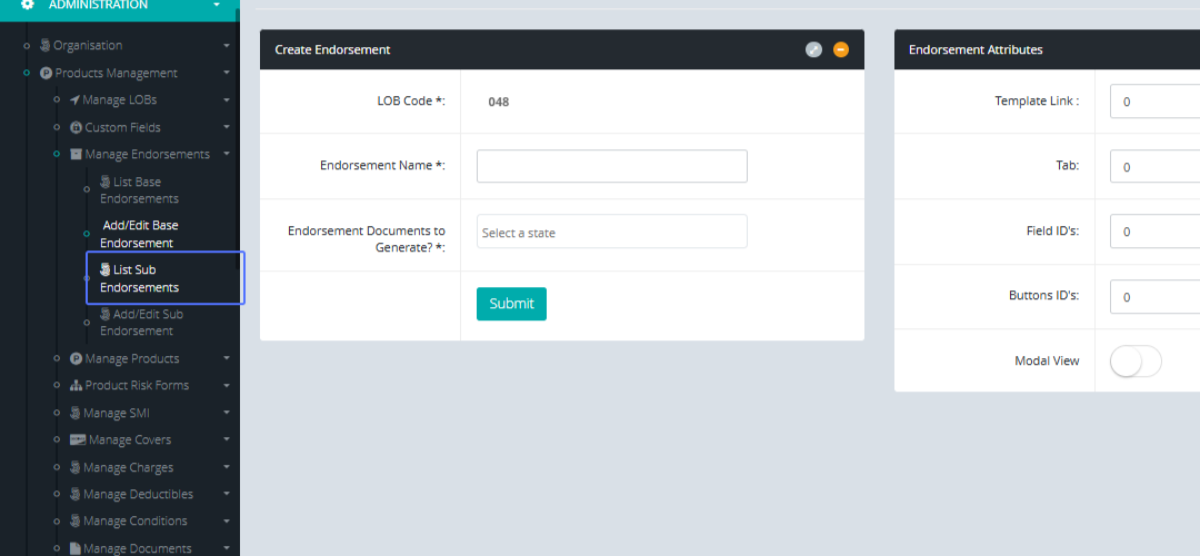
Tab Name: List Sub Endorsements - GENOVA INSURANCE
Creating a New Endorsement: Click on the “Create New Endorsement” Button.
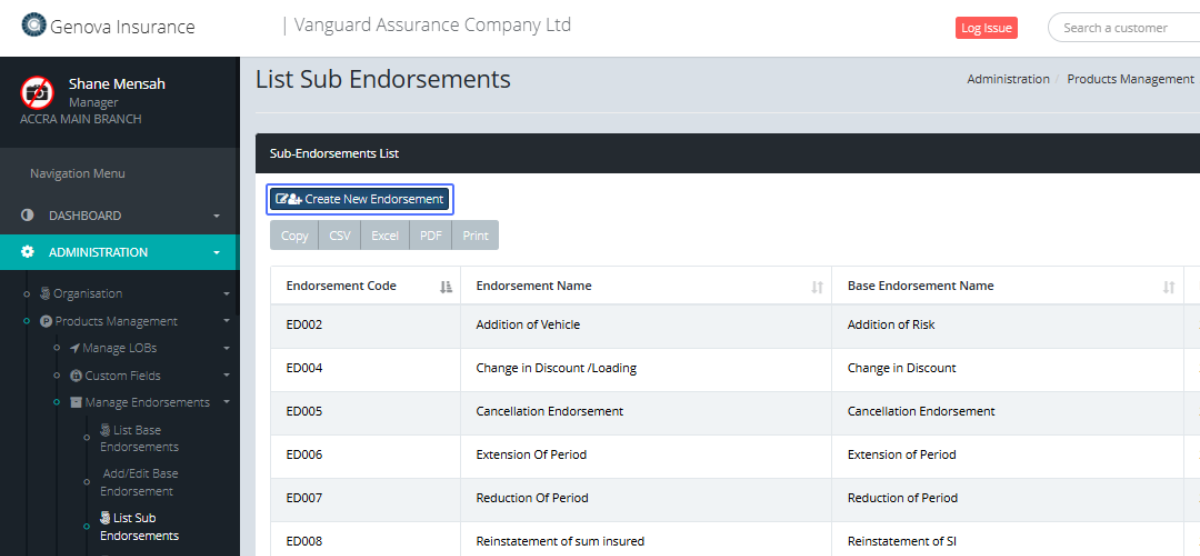
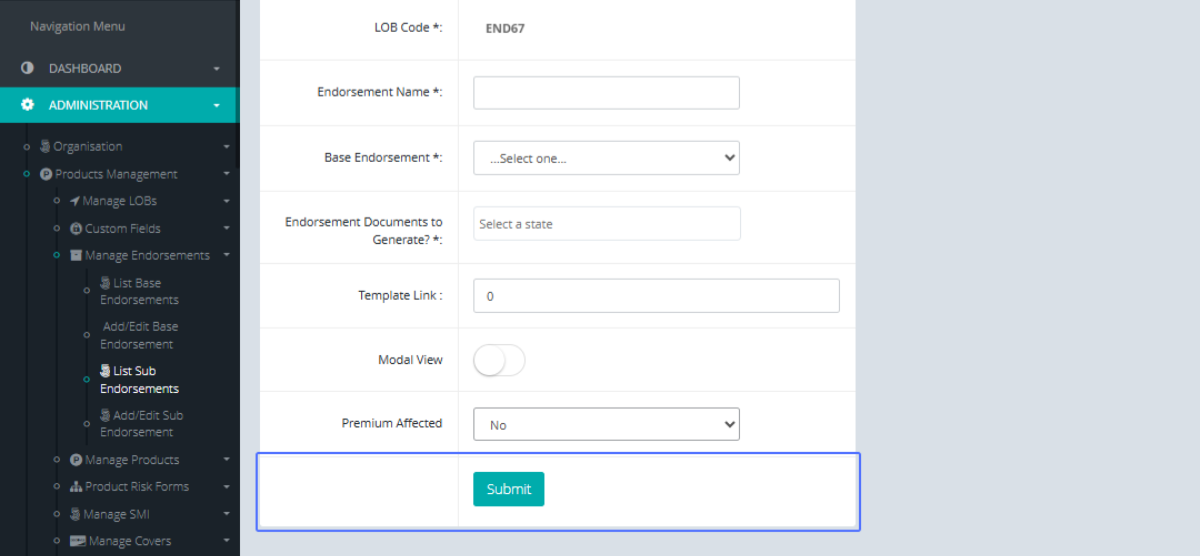
Entering the Endorsement Code and Name: the system creates a new Endorsement code, So the user must enter the Endorsement Name.
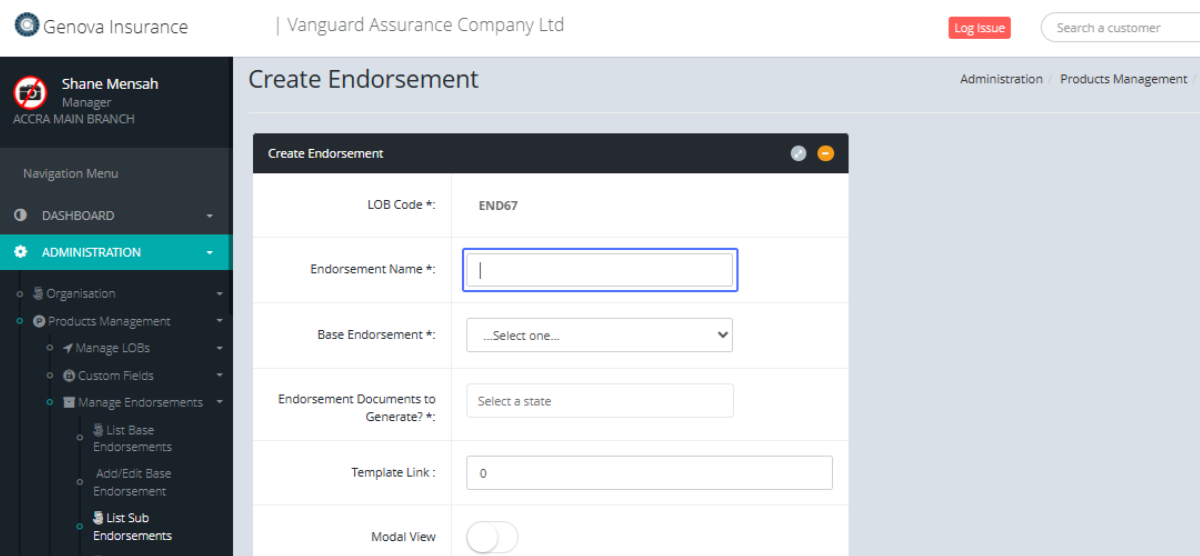
Selecting the Base Endorsement: User can select the base Endorsement that has already been created within the system.

Selecting Endorsement Documents: Select the Documents you want the endorsement to generate.
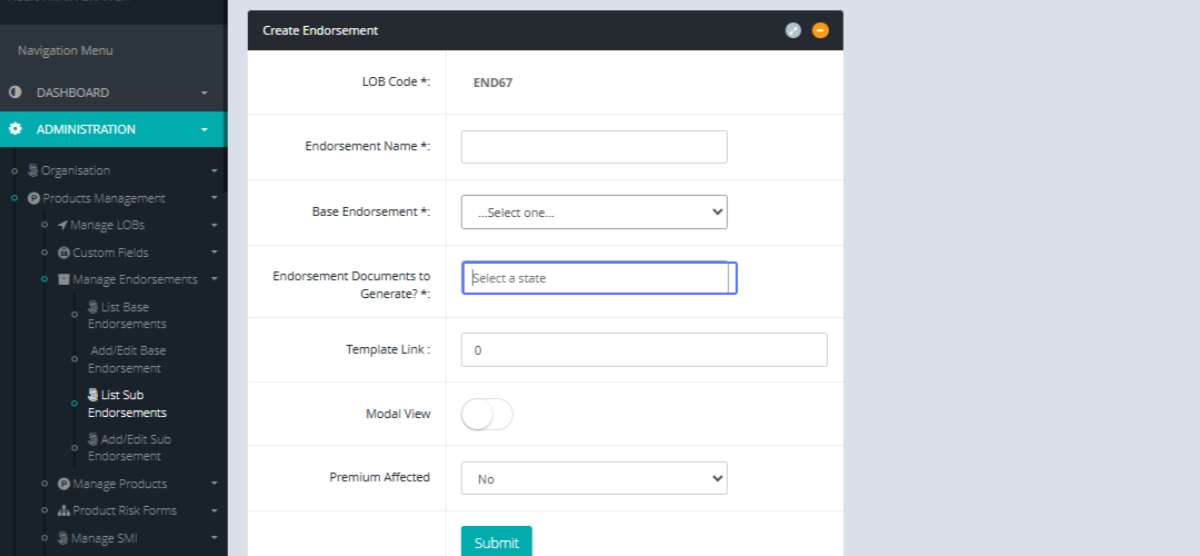
Entering Template Link (Developer Use Only)
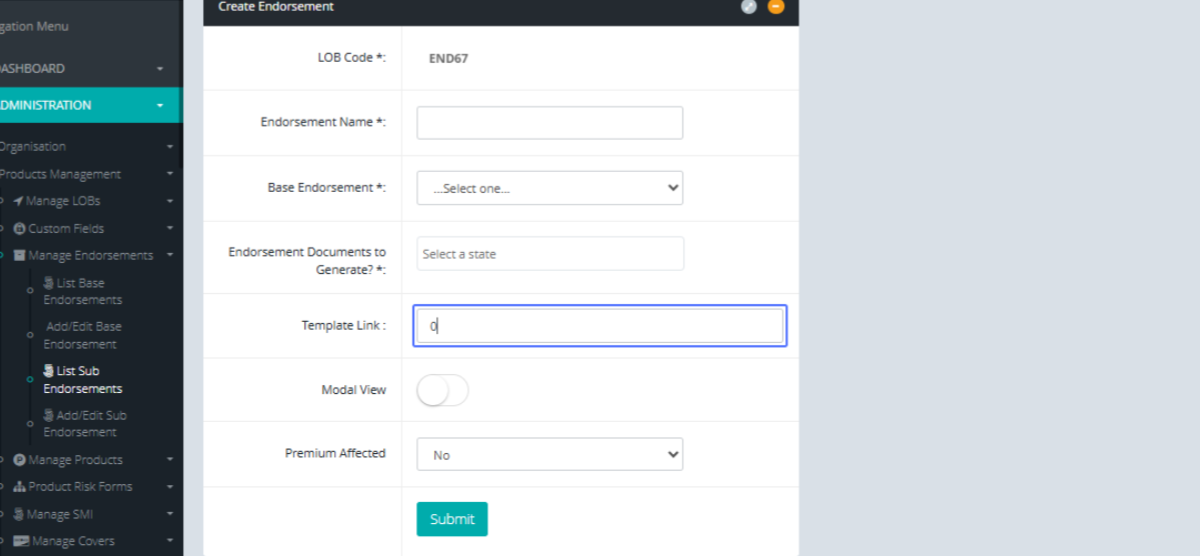
Configuring Modal View
Setting Modal View Checkbox: Check the Modal Box, if you want the endorsement to show a modal.
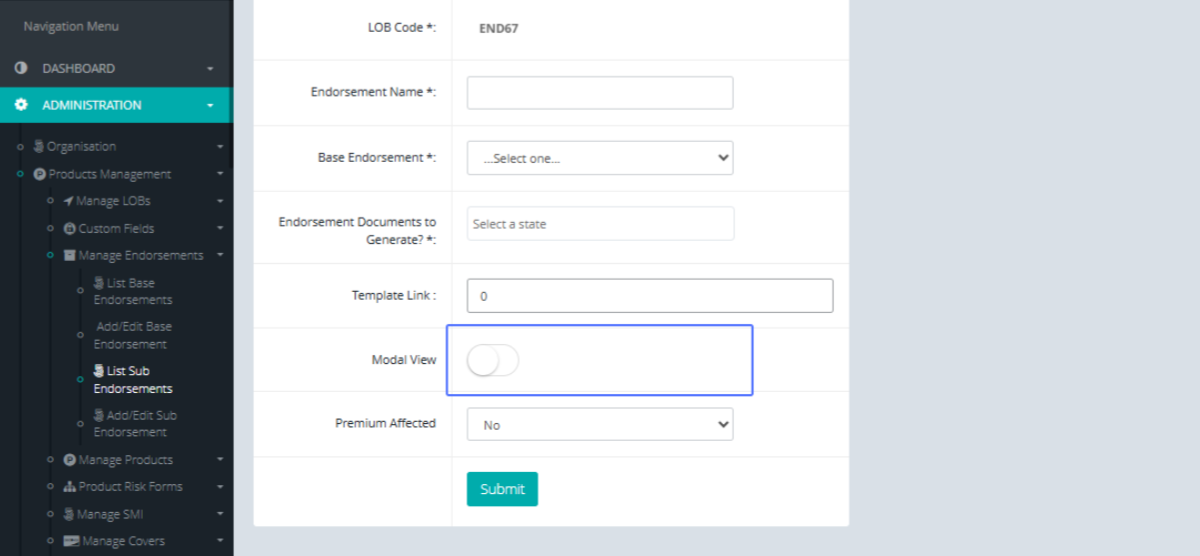
Specifying Premium Impact: Choose whether the premium is affected.
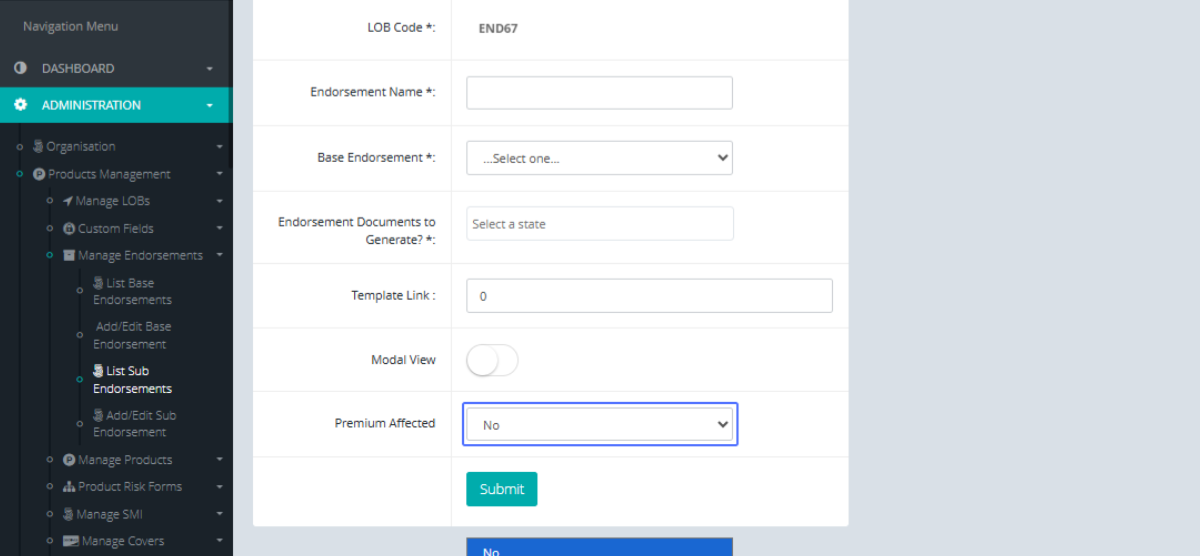
Submitting the New Endorsement: Click submit, if the information is correct.